Permanently Disable Windows Defender
Rhino last confirmed this is still working:
- Windows 10: 2022-07-27
- Windows 11: 2022-08-30, 2023-02-22
Step 1:
Open the Windows Defender settings GUI (“Virus & threat protection settings”) and DISABLE EVERYTHING
- Real-time protection
- Cloud-delivered protection
- Automatic sample submission
- Tamper protection
- Anything else you might see…
Step 2:
Run PowerShell.exe as Administrator and paste in all the following commands:
Set-ItemProperty "HKLM:\SOFTWARE\Policies\Microsoft\Windows Defender" -Name "DisableAntiSpyware" -Type DWORD -Value 1 -Force

New-Item "HKLM:\SOFTWARE\Policies\Microsoft\Windows Defender" -Name "Real-Time Protection" -Type KEY -Force

Set-ItemProperty "HKLM:\SOFTWARE\Policies\Microsoft\Windows Defender\Real-Time Protection" -Name "DisableRealtimeMonitoring" -Type DWORD -Value 1 -Force

Set-MpPreference -SubmitSamplesConsent 0

Add-MpPreference -ExclusionPath "C:\"
Note: The exclusion added for C:\ is a backup, just to be safe.
Optional: Also add exclusions for all other drive letters:
echo a b d e f g h i j k l m n o p q r s t u v w x y z | foreach { Add-MpPreference -ExclusionPath ( $_ + ":\" ) }Step 3: Reboot.
Step 4:
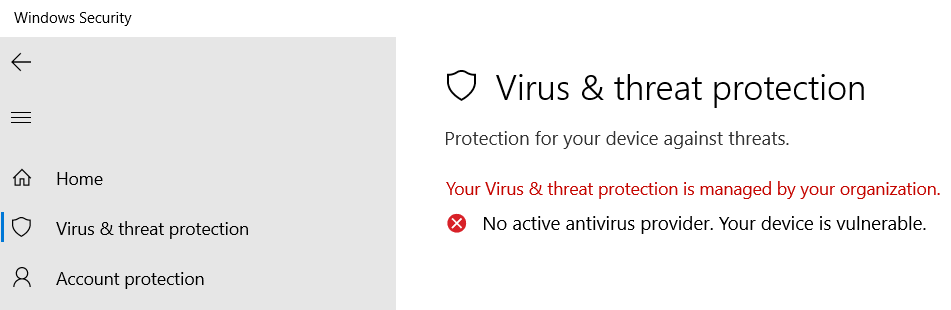
Check the Windows Defender settings in the GUI again. It should now say Defender is disabled and managed by your organization.