ADExplorer Cleartext Credential Discovery
-
Obtain ADExplorer.exe using one of the following methods:
- Download from https://docs.microsoft.com/en-us/sysinternals/downloads/adexplorer
- Execute directly from \live.sysinternals.com\tools\adexplorer.exe
- Accessible via Software Center in Control Panel
- Discovered on share in target network
-
Connect to the target Active Directory by launching ADExplorer and clicking OK.
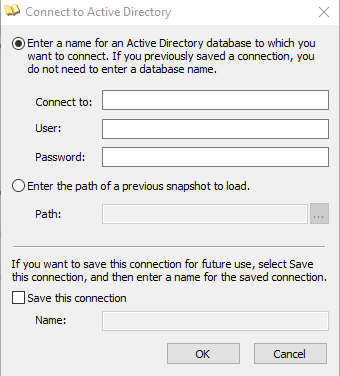
The presented fields are optional and can be useful if you are connecting to a different Active Directory domain than you are currently operating from or a different user context.
-
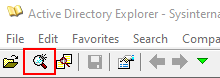
After successfully connecting to the target Active Directory, click the search icon on the left side of the menu bar.
-
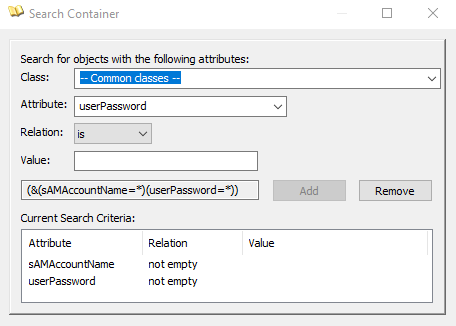
In the Search Container dialog, select:
- Attribute: samAccountName
- Relation: not empty
-
Click Add
-
In the Search Container dialog, select:
- Attribute: userPassword
- Relation: not empty
The full search criteria should look like the following:
-
Click Search
-
Review any results returned for valid credentials.
-
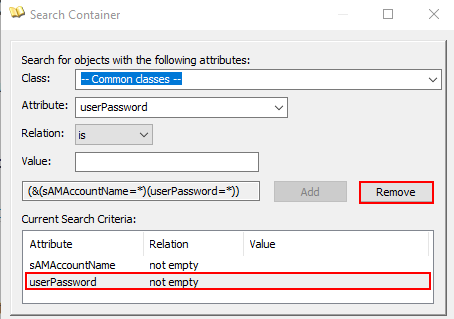
Once review is complete, click on the userPassword entry under “Current Search Criteria” and click Remove.
-
Repeat steps 6-9 for the following Active Directory attributes:
- unixUserPassword
- unicodePwd
- comment
- description
- info
- msSFU30Password (may not exist in schema)
- ms-Mcs-AdmPwd (LAPS passwords)
The comment, description, and info fields are likely to contain a significant amount of data, if they are used. This will require a lot of reading within the ADExplorer.exe user interface to discover valid credentials. Using ADRecon for this purpose may be a better strategy for fields with abundant text.