With no Configuration File
To set up a Team Server with basic configurations, you can do so with a similar one-liner below
./brute-ratel-linx64 -ratel -a admin -p BHISpassw0rd -sc cert.pem -sk key.pem -e 1234567a -h :65000
-a = Username -p = Password -sc = SSL Certificate (Default Provided in the /bruteratel folder -sk = SSL key file -e = Encryption Key -h = Team Server:Port or just :Port
Using a Configuration File (Preferred)
To set up a Team Server with a specified configuration file, you can use the following command.
./brute-ratel-linx64 -ratel -c bare-profile.conf
The bare profile is the following Make sure you change the encryption key etc. for OPSec
{
    "admin_list": {
        "admin": "password"
    },
    "auto_save": false,


    "c2_handler": "0.0.0.0:9999",
    "comm_enc_key": "rjcfi3497yjhcxdh45ihyndb48y6tubvgnme56",

    "ssl_cert": "cert.pem",
    "ssl_key": "key.pem",
    "user_list": {
        "User1": "1234567a"

    }

}
Connecting to a Team Server
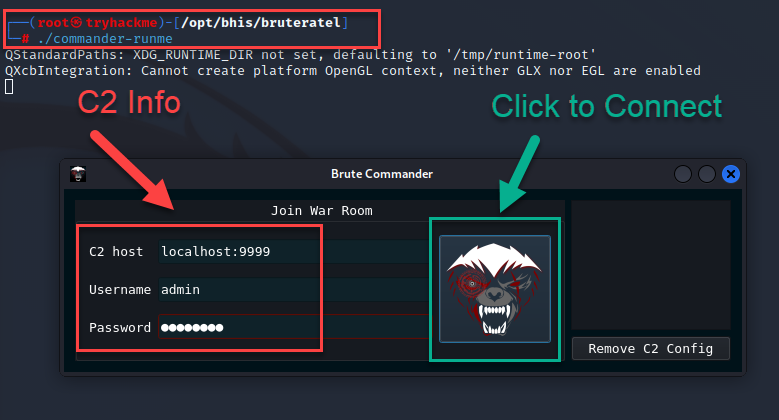
Connecting to a Team Server, you use the following command
./commander-runme
You will be prompted with a GUI, enter in the Team Server, Username, and Password. Authenticate and Enjoy!
Interacting with the Teamserver
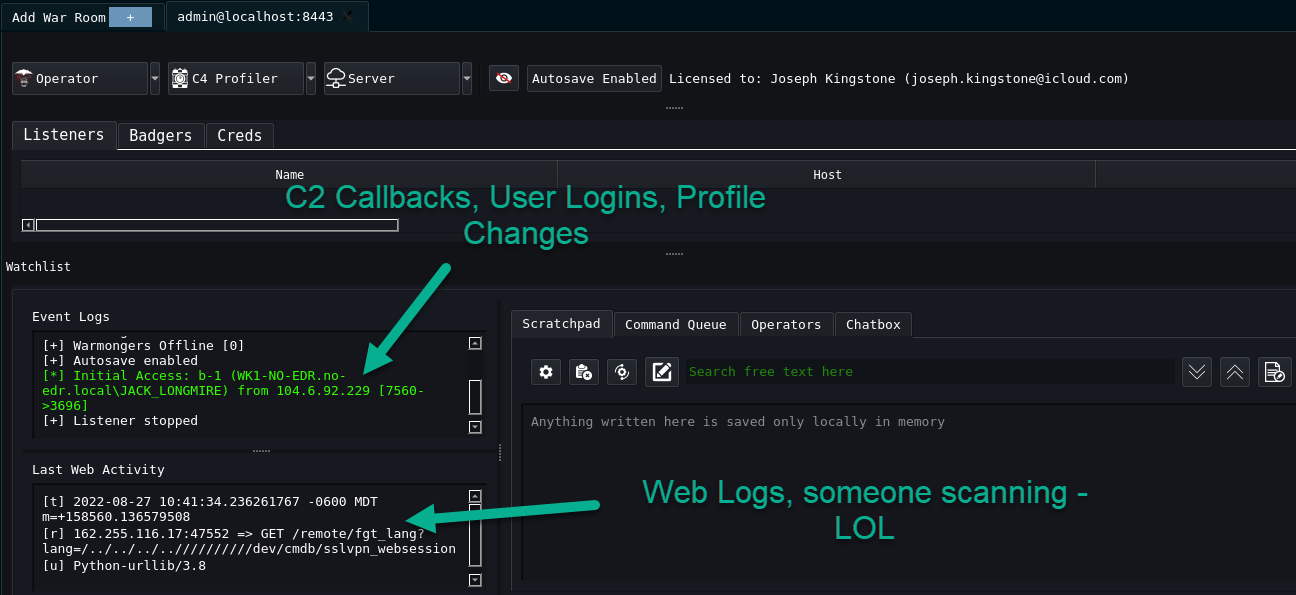
Event Logs and Last Web Activity Event logs show basic information such as when a user logs into the Team Server, Initial Access is achieved, Listeners are started/stopped, and more. Web Activity is similar to doing a tail -f on your apache logs to see what is going on. Seen below.
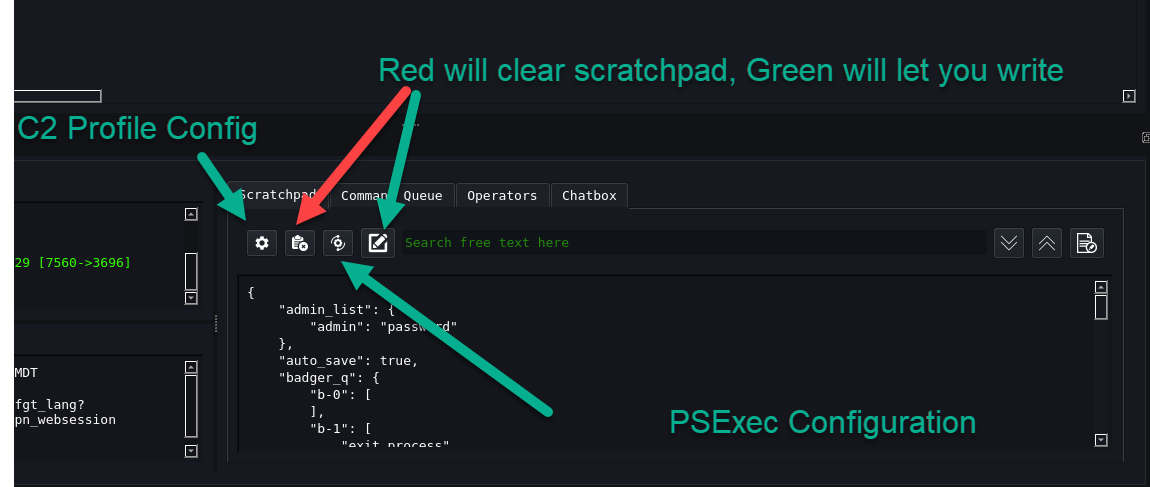
Scratchpad The gear icon will show you the current C2 config/profile you set up. The Clipboard icon with the x will clear any notes you may have taken. The Pencil and Paper icon will allow you to start taking notes, The other icon will show you the current PSExec configuration.
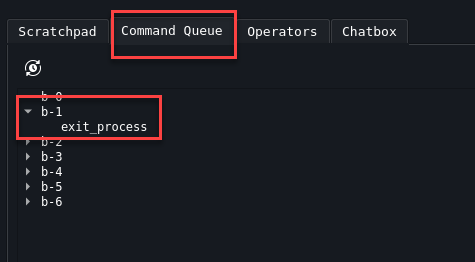
Command Queue The Command Queue will allow you visibility of all the badgers/shells and what commands are in their queue. In the example below it’s just exiting a process, however this could be anything. SharpHound, Snaffler, whatever you have in queue to run.
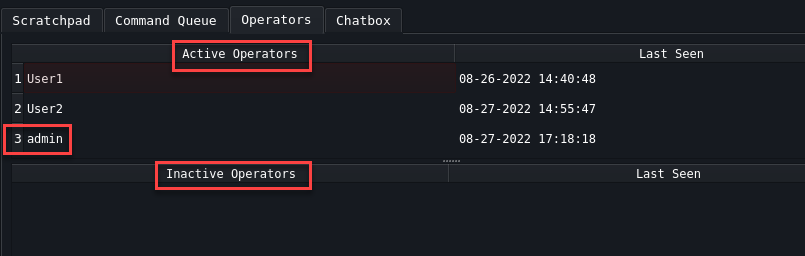
Operators Operators tab shows all active and inactive users.
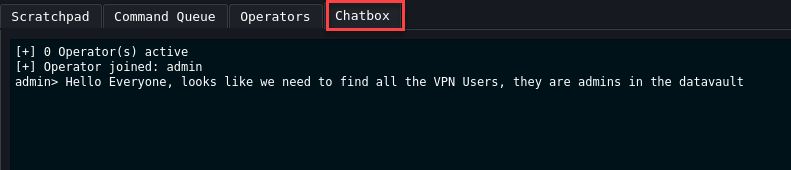
Chatbox
Basic chat functionality between everyone logged into Team Server
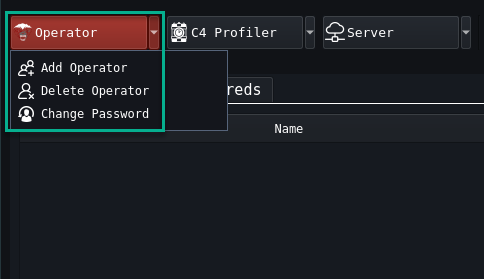
Adding and Removing Operators Add, Delete, Change Passwords
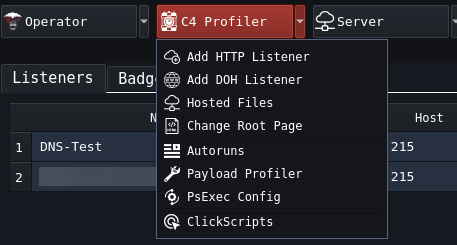
C4 Profiler C4 Profiler has eight options. Let’s break them down
- Add HTTP Listener: Add an HTTP/S listener
- Add DOH Listener: Add a DNS over HTTP/s
- Hosted Files: List all files hosted on your Team Server
- Change Root Page: Change what someone sees if they attempt to browse your root web page
- Autoruns: Commands to run as soon as initial access is established
- Payload Profiler: Show details on HTTP/SMB/TCP Listeners
- PsExec Config: Show config for your PsExec setup
- ClickScripts: Show all automated scripts to streamline operations
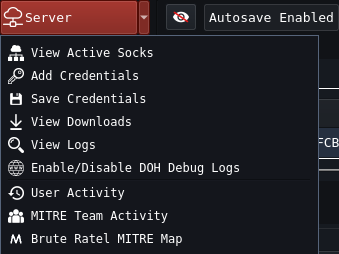
Server
- View Active Socks: View Active Socks Proxy Connections
- Add Credentials: Add credentials found during Red Teaming/Assumed Compromise
- Save Credentials: Save stored credentials locally
- View Logs: View all logs for Badger Agent
- Enable/Disable DOH Debug Logs: Enable DNS Over HTTPS logs for debugging purposes
- User Activity: Show detailed logs of commands executed by the user along with Mitre Mappings
- Mitre Team Activity: Provides Mitre graph of all Brute Ratel Commands
- Brute Ratel Mitre Map: Shows all Badger commands in a node based Mitre Map
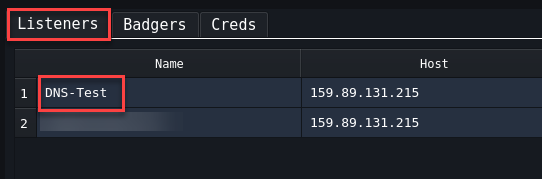
Listeners Listeners wait for command-and-control connections from a compromised computer. Currently Supported listerners are:
- HTTP/s
- DNS Over HTTPS (DOH)
- TCP
- SMB
Badgers Badgers are the agents that check into Brute Ratel from a compromised machine, much like Cobalt Strike has Beacons.

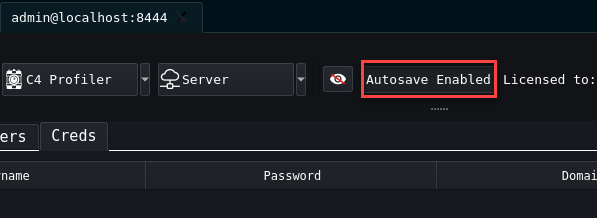
Autosave
Autosave is a feature in Brute Ratel that saves a Team Server’s configuration automagically in intervals. This includes Compromised Hosts, Autoruns, Click Lists, and Authentication. ***Please always have autosave enabled. Additionally, save a back up copy of your Team Server Profile as soon as it’s running. ***