*** This procedure should ONLY be used on Red Team engagements unless direction has been provided to the contrary. ***
Details for accessing the signing host and the password for the certificate token can be found in the BHIS password vault (CodeSigner).
Background
Connecting to the singing host using RDP causes the EV Certificate token to be unavailable in the context of the host operating system. When signing is attempted, the server attempts to access the token and an error like the following is shown to the operator. This condition will exist through TeamViewer when an RDP session is active as well.
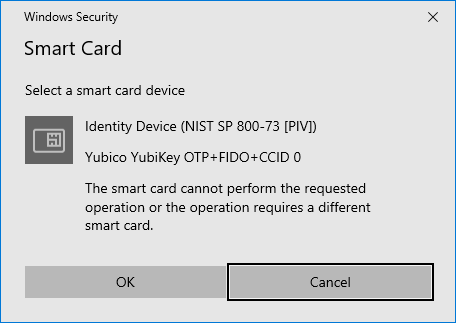
As a result, one of the methods below should be used in order to access the signing host in a manner that does not block EV Certificate token access.
Signing System Access with Systems TeamViewer Approval
Credentials for accessing the BHIS Systems TeamViewer instance can be found in the BHIS password vault (teamviewer.com). Upon first use of the TeamViewer instance, the Systems team will receive an email and have to authorize use of the license.
In your TeamViewer client instance, click the “Sign In” link and authenticate using the credentials from the BHIS password vault.
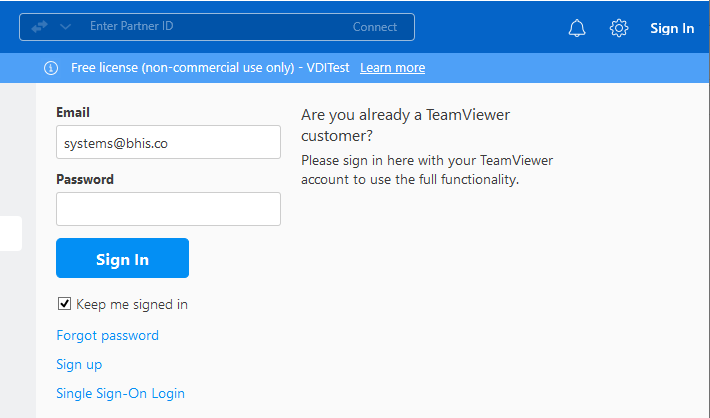
*** Note: If you have never used TeamViewer from the client system, BHIS Systems will have to approve the request. A notification will be produced to inform you of this condition. Reach out to BHIS Systems for expedited approval. ***
After getting your client authorized, it is likely that a TeamViewer license may need to be released. As a result, you may need to authenticate to the web console at the following URL.
https://login.teamviewer.com/LogOn
*** Note: If you have never used TeamViewer from the browser on your client host, BHIS Systems will have to approve the request. A notification will be produced to inform you of this condition. Reach out to BHIS Systems for expedited approval. ***
After authenticating to the web console, click the deactivate device link on any of the registered TeamViewer client devices.
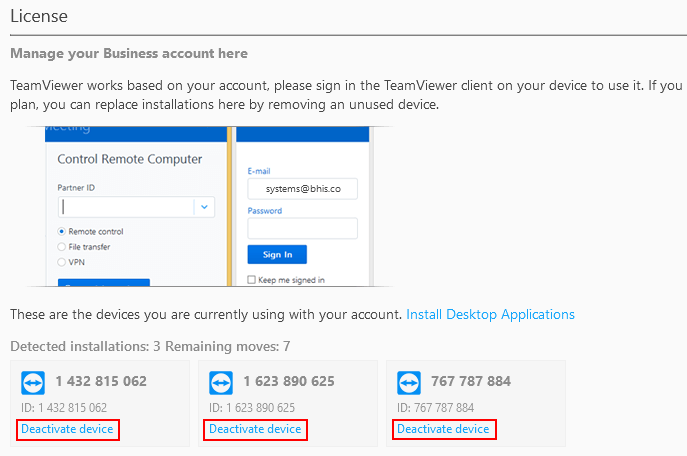
After deactivating a conflicting device, you should be able to authenticate to the TeamViewer client application successfully. Launch a session to the Signing System by clicking on the BHIS-CodeSigner entry.
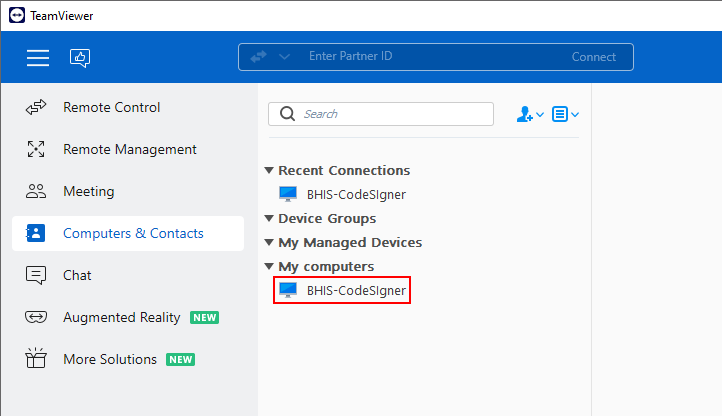
If necessary, authenticate to the sytem using the credentials in the BHIS Password Vault. Otherwise proceed to the section titled “Sign the Target Binaries Using Signtool.exe” below.
Signing System Access without Systems TeamViewer Approval
Note: Use this method if you do not want to request authorization to use the BHIS Systems TeamViewer license.
RDP to the system hosting the code signing certificate. Open a command prompt and change into the C:\Users\BHIS\Desktop folder for easy access to signtool.exe.

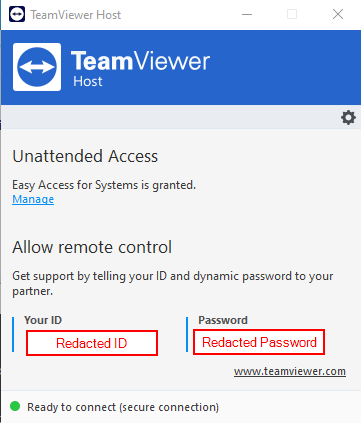
Immediately after establishing the RDP connection, launch the “TeamViewer Host” application using the shortcut on the desktop.

When “TeamViewer Host” launches, the following dialog will be displayed. Make note of the ID and Password in the dialog. This will be needed to connect from the TeamViewer client installed on your test VM.
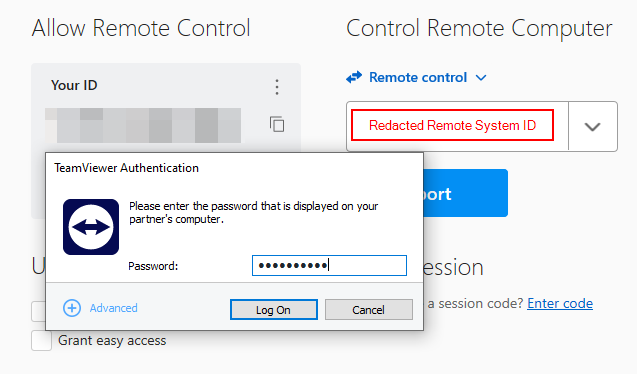
Connect to the signing host using the TeamViewer client on your test VM using the ID and password recorded from the TeamViewer Host.
Disconnect the terminal services client from the RDP session by clicking the “X” in the terminal services client banner.

Disconnecting the terminal services session will cause the system to lock in the TeamViewer client instance. Use the credentials from the password vault to re-authenticate to the session.
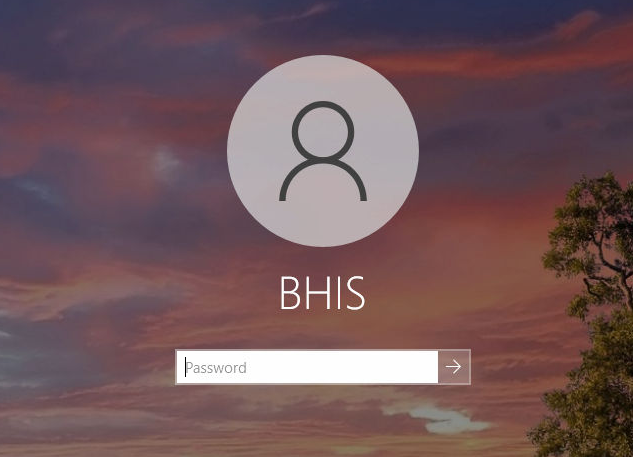
The session will be time-limited but should be sufficient to simply copy and paste the command to sign the payloads.
Proceed to the “Sign the Target Binaries Using Signtool.exe” step below.
Sign the Target Binaries Using Signtool.exe
Once authenticated, you will be able to sign your selected payload using the command line shown below.
signtool.exe sign /tr http://timestamp.sectigo.com /td sha256 /fd sha256 /a "[Path to Binary]"
Note: a copy of signtool.exe has been placed on the desktop of the workstation for easy reference. Opening a command prompt in this location will allow simple copy/paste. Invocation of signtool is shown below.

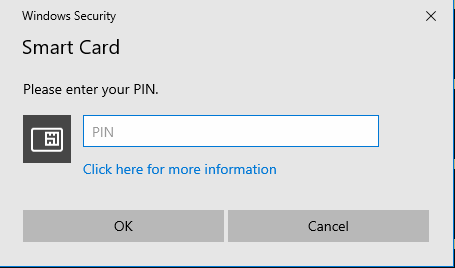
After entering the command line above, the system should prompt you for the EV certificate password, as shown below.
Upon successful authentication and execution, the following output is produced.

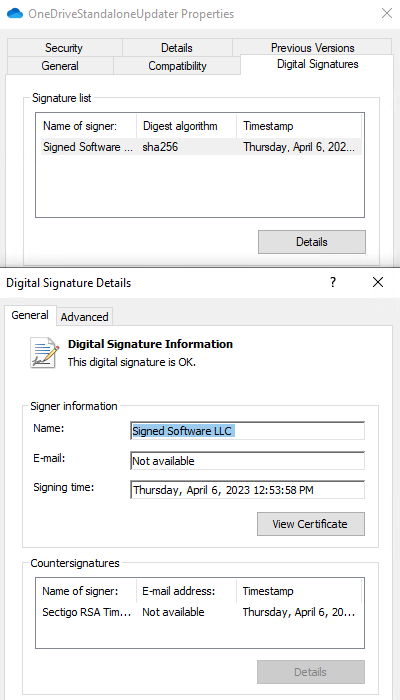
Review of the properties on the file should include the signature tab and details similar to those shown below.